

 SEARCH
 diglloydTools™

$220 SAVE $130 = 37.0% Western Digital 16.0TB Western Digital Ultrastar DC HC550 3.5-in… in Storage: Hard Drives
|
|

|
|

|

|

|

|

|

|
SoftRAID is easier RAID

SoftRAID is a 3rd-party (non-Apple) program for RAID on Mac OS X. It offers a interface that is easier to understand and less error-prone than Apple’s Disk Utility, and (quite literally) doesn’t crash as Apple’s Disk Utility is prone to do.
I’ve used SoftRAID as a satisfied customer for years, and the company takes pride in it. If you buy SoftRAID, please let them know you heard about it here.
For anything but the most basic RAID setup, SoftRAID has many benefit:
- More intuitive display of volumes and drives; much easier to avoid mistakes!
- Fast rebuilds of mirrored volumes;
- Commands to create a startup CD or DVD;
- Ability to blink the disk lights (helpful when you have 4/6/8/10 disks!);
- Notifications and system logging when disk “events” occur;
- Can delete individual volumes without partitioning;
- Can convert RAID sets to its own format;
- Can delete volumes on a drive without affecting other volumes on the same drive.
- And more!
Multi-threaded
SoftRAID is a multi-threaded “filter” driver (one thread per CPU), and under heavy loads it can offer significantly higher performance than Apple’s single-threaded Disk Utility driver.
A forthcoming version of SoftRAID will offer a single-threaded option (checkbox), to work around bugs in other flaky components; this can be a (rare) issue today with certain hardware.
Faster and easier RAID set creation
Perhaps the best feature of SoftRAID is faster and easier creation of RAID sets—none of the confusing Disk Utility nonsense of having to partition first, then make a RAID set out of the partitions.
SoftRAID lets you select all the desired hard drives, then in one step make a RAID set of the desired type and total size (no mental gymnastics required). Not only is this much faster, it’s less error-prone, especially when you’re working with 4 or more drives.
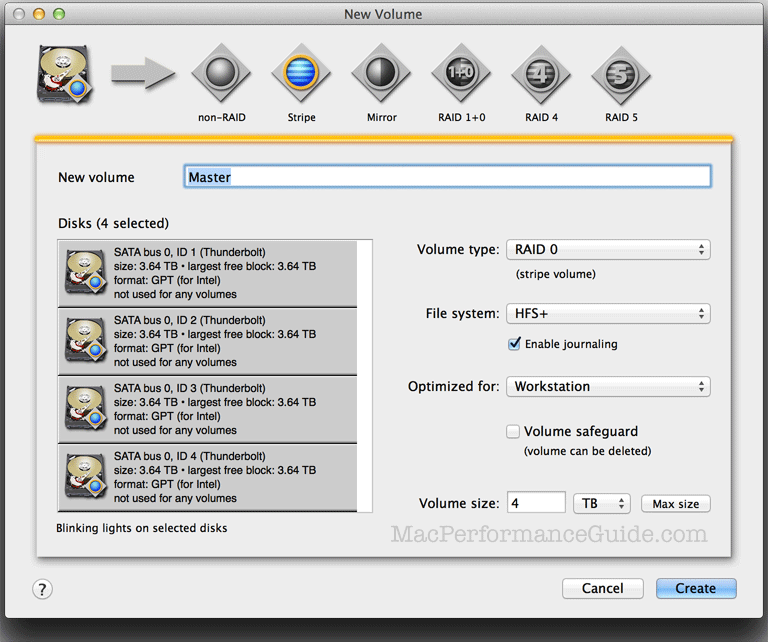
For example, here is all you have to do to create Speedy, a 2-drive striped RAID of size 64GB; select the two drives (or 10 drives), then choose to bring up the dialog:
Better display of RAID setup
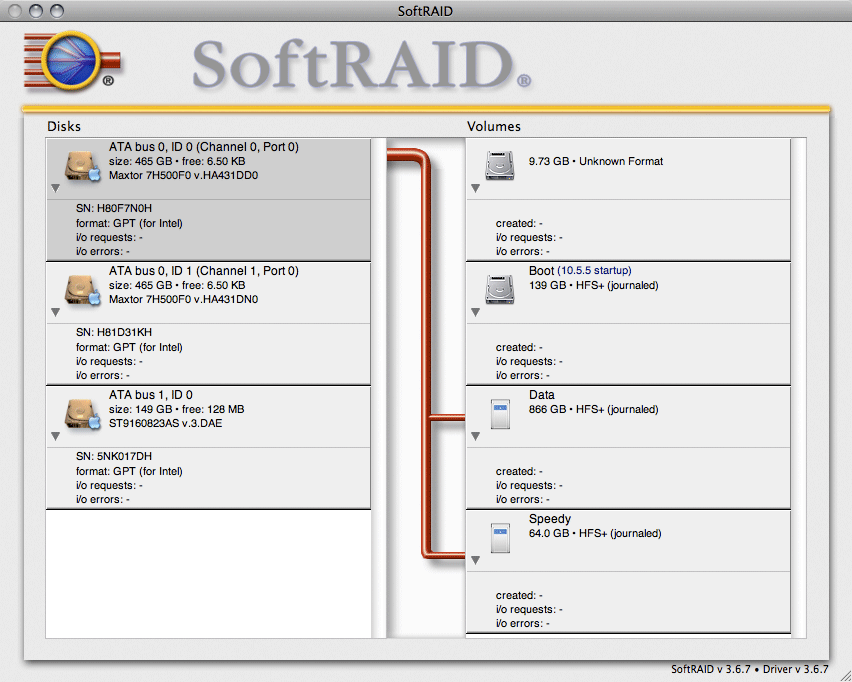
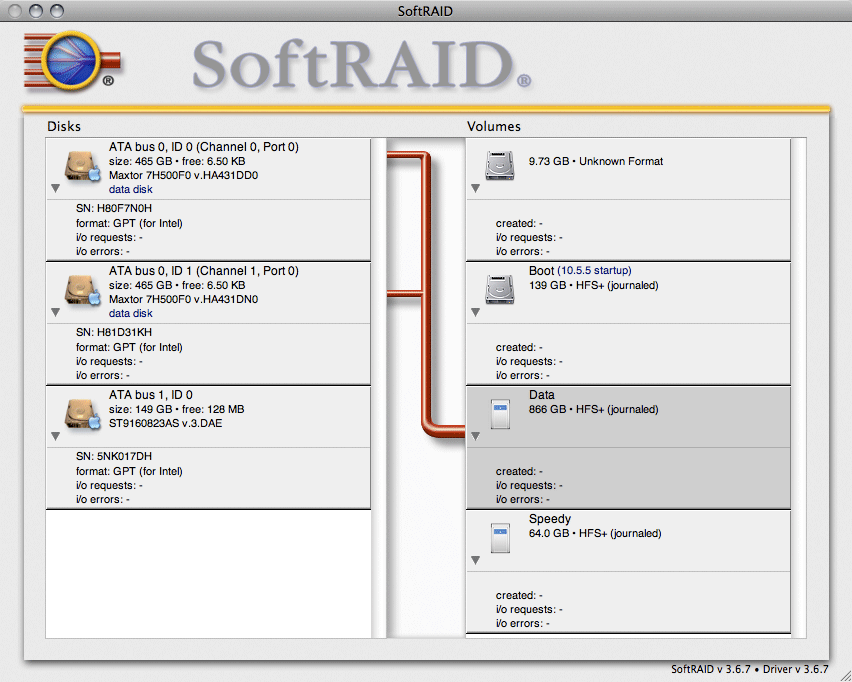
SoftRAID makes it easier to see what’s going on. You can click on a drive to see the volume(s) to which it belongs, or you can click on a volume to see the drives/partitions it is composed of. This might not seem like a big deal with one or two drives, but with 6, 10 or 12 drives, it’s all too easy to make a mistake, a constant risk with Apple’s Disk Utility.
Shown below is the way SoftRAID displays the drive-to-volume mapping. The drive on has been partitioned, and forms part of the and volumes.
Shown below is the way SoftRAID displays the volume-to-drive mapping. The volume is composed of two drive partitions as shown.
Seagate 22TB IronWolf Pro 7200 rpm SATA III 3.5" Internal NAS HDD (CMR)
SAVE $100
