

 SEARCH
 diglloydTools™

|

|

|

|

|
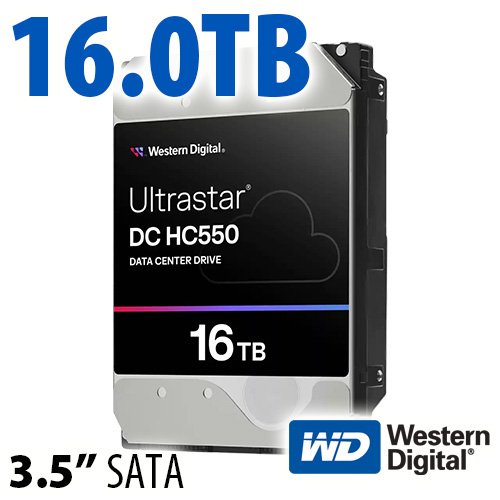
$220 SAVE $130 = 37.0% Western Digital 16.0TB Western Digital Ultrastar DC HC550 3.5-in… in Storage: Hard Drives
|
|

|
|

|
Using Time Machine with Adobe Lightroom

Adobe Lightroom version 2 (“LR2”) has some special considerations to keep in mind when backing up, especially with Time Machine. These considerations also apply to version 3.
Adobe Lightroom catalog backup Permalink
The metadata database used by Lightroom is one large SQLLite database file (an interesting design choice, since corruption of that one file generally means loss of all metadata).
If the catalog file is open and in-use when Apple’s Time Machine backs it up, and Lightroom is modifying the catalog during the backup, the backup of the database could be garbled, because it changed while being copied, and thus was in an inconsistent state.
That’s the theory at least: in practice the chances of this are low, so it’s not a reason to disable Time Machine backups for the Lightroom catalog.
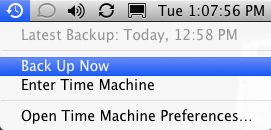
You can backup the Lightroom catalog with the Finder, with Time Machine, or anything else.
But backing-up the Lightroom catalog should be done when Lightroom is not running to ensure a good backup.
Lightroom 3 automatically excludes the currently-open Lightroom catalog from backup while Lightroom is running. I think this is an exceedingly poor design choice by Adobe, because in my testing, I was simply not able to produce a corrupted catalog with Lightroom 2. Even if one backup were bad, others would be good, and having a backup is far better than not having one. We must hope that a mistake is not made in excluding it even when Lightroom is not running eg if Lightroom crashes and therefore leaves it in the exclusion list. Caution is advised!
Seagate 22TB IronWolf Pro 7200 rpm SATA III 3.5" Internal NAS HDD (CMR)
SAVE $60
