

 SEARCH
 diglloydTools™

|

|

|

|

|
Time Machine for Always-on Backup

Use Time Machine as an “always on” backup, protecting you every hour from your own mistakes as well as hard drive failure.
See Using Apple Time Machine for Backup.
The Time Machine backup is generally at the same risk at the Mac itself (theft/fire/flood), so it is not a backup free of the same risks. But I would not be without Time Machine, because it’s saved me hours of work when I needed a file that a buggy program had damaged.
A robust backup strategy means storing other backups away from the computer.
- Do not think for a second that Time Machine can be your only backup.
- Always make conventional external backups that you store safely away from your Mac.
- A clone of your system drive is a great way to recover from a system problem, as well as backing up some important data on the boot drive.
You will need to dedicate a separate volume (drive) for Time Machine backup using Select Disk. Remember that Time Machine will only backup internal drives, and that it won’t backup to the same volume.
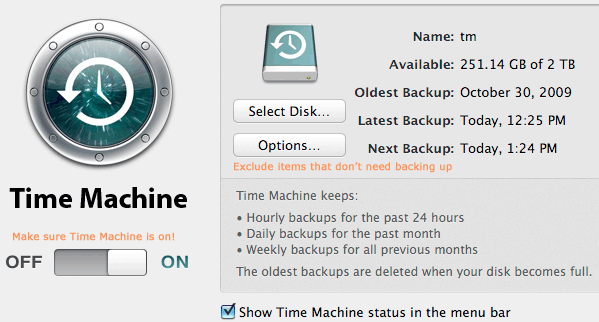
Be sure to exclude volumes or folders that have no need to be backed up. I exclude all sorts of things; I certainly do not need to backup my applications; that is best done by cloning my startup drive.

